Install Staaash 2.0 on Ubuntu 24.04: Self-Hosted Google Drive

This guide is a companion to the video Install Staaash 2.0 on Ubuntu 24.04: Self-Hosted Google Drive, which is the starting point for the install below. Watch the video first for the walkthrough, then use this page for the exact commands, the expected outputs, and the honest limits.
What Staaash is
In the video, the presenter sets up Staaash, a free and open-source file drive you run on your own hardware: browser uploads, share links, user accounts, and a desktop sync app, all from one Docker Compose file. Added research from the project: the code is AGPL-3.0 licensed, and version v2.0.0 was published 2026-11-20 — the release page carries the pinned docker-compose.yml and example.env used here, plus desktop sync apps for Linux, Mac, and Windows and a SHA256SUMS file. The video's sandbox test ran every step below on a throwaway Ubuntu 24.04 container on 2026-11-23 and destroyed it afterwards; I have not re-run these commands here, so treat them as video-verified rather than independently re-tested.
Before you start
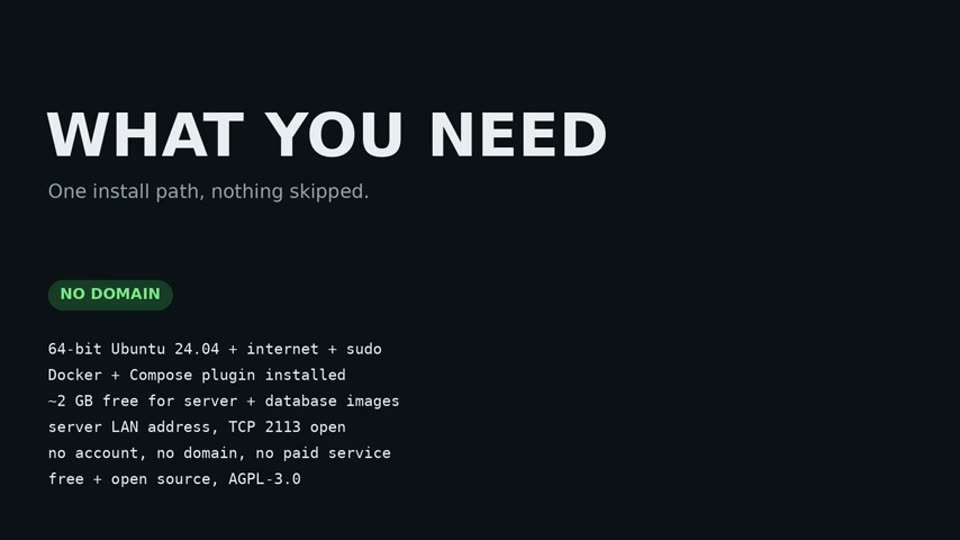
In the video, the prerequisites are a 64-bit Ubuntu 24.04 machine with internet access and sudo, Docker with the Compose plugin already installed (docker compose version should answer a version number), about 2 GB of free disk space for the server plus database images, your server's LAN address, and TCP port 2113 reachable. No account, no domain, and no paid service are needed. New to Docker, install it first from the official Docker docs for Ubuntu, then follow this video.
Step 1 - download the two release files
In the video, the install starts in a new empty folder with the two pinned files from the v2.0.0 release Assets:
mkdir -p ~/staaash && cd ~/staaash- Download
docker-compose.ymlandexample.envfrom the v2.0.0 release page into that folder
Added research: pinning these two files to the release instead of tracking latest means a future release cannot silently change what you installed, and the release also ships a SHA256SUMS file if you want to check your downloads. Keep this folder; your files land in a library folder and the database in a postgres folder next to docker-compose.yml, so back those two folders up together.
Step 2 - set the database password
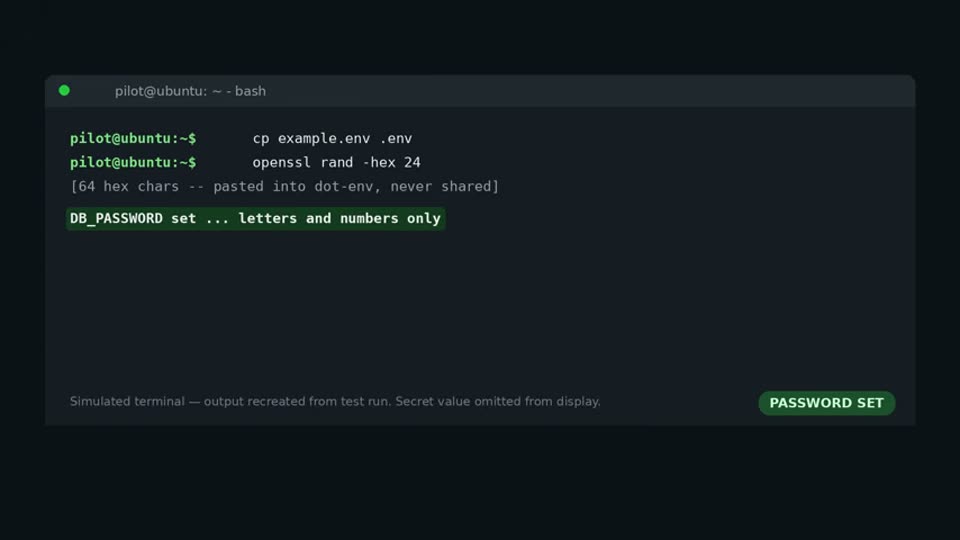
In the video, the settings live in a .env file copied from the shipped template, with one value you must change:
cp example.env .envopenssl rand -hex 24- Paste the output as the
DB_PASSWORDvalue in.env
The password must be letters and numbers only; a symbol or a space breaks the database connection, which is why the hex output of the command above is a safe choice. The video redacts the generated secret on screen, and so does the still below. Leave every other setting in .env as it is.
Step 3 - start the stack
In the video, one command starts everything, and the first start downloads the images, which can take a few minutes:
docker compose up -ddocker compose ps
The expected answer is three containers running: the server, the worker, and the database. Added research from the official installation docs: create your account immediately after this step, because until you do, anyone who can reach port 2113 can create the owner account before you. On a shared network, set STAAASH_PORT=127.0.0.1:2113 in .env until your account exists, then remove it and run docker compose up -d again; on a server the internet can reach, keep that binding and open the setup page through an SSH tunnel instead.
Step 4 - create the owner account and prove it works
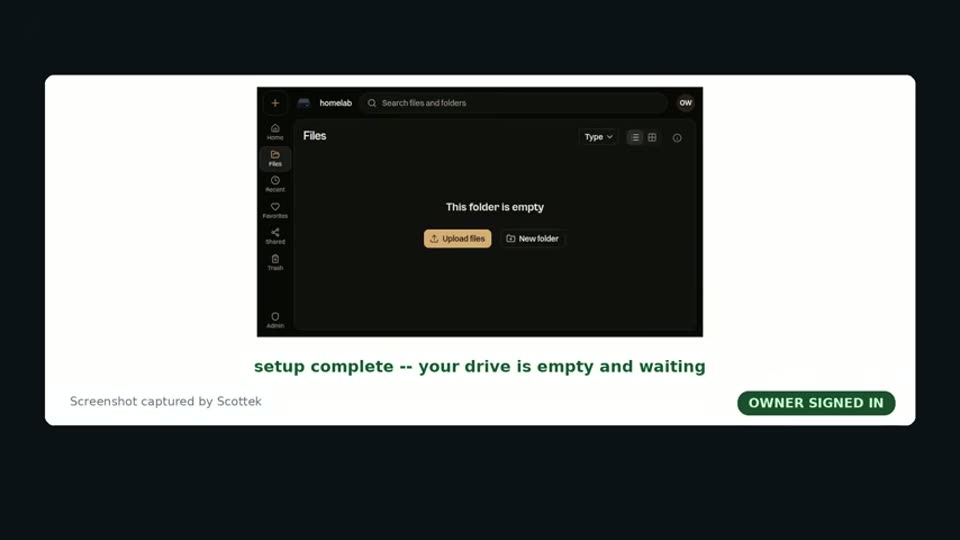
In the video, opening http:// plus your server's address plus :2113 in any browser on your network shows the Staaash setup page, and the first account you create becomes the owner, so pick a strong password and keep it somewhere safe. The video's proof is two checks: the health endpoint answers live and the version endpoint reports 2.0.0. A fresh install lands you in an empty drive with upload and new-folder actions waiting, which is the expected first-run state, not a fault.
Limits and next steps
Be honest about what this path does not prove. The video's sandbox verified the browser setup to an empty drive on Ubuntu 24.04, and I have not re-run any of it here, so treat every step above as untested on your machine until you see the same outputs. The video did not exercise the desktop sync app end to end; the desktop app docs and the pinned Staaash-Desktop-2.0.0 installers on the release page are the next read if syncing is your goal. For care and feeding, the official backup and restore guide explains how to move the library and postgres folders safely, and the live demo lets you click through the interface before you install. If whole-server backup is your lane, the companion HolyArrs Ubuntu guide covers a related self-hosted setup next.